




Edit the Roles Granted to a Group
The Edit Roles feature in Visual Guard allows administrators to manage the roles assigned to a group by granting or revoking roles as needed. This provides a centralized way to control the permissions and access rights available to all users within the group.
By updating roles at the group level, administrators can ensure that any changes are consistently applied to all group members. This approach simplifies access management, reduces manual effort, and helps maintain accurate and up-to-date security configurations as organizational needs evolve.
To view group details follow the steps below:
Step 1: Select the Repository > Groups from the Left Navigation Panel.
Step 2: Click on the Group Name to view the Group Properties.
Step 3: Select the Roles Tab.
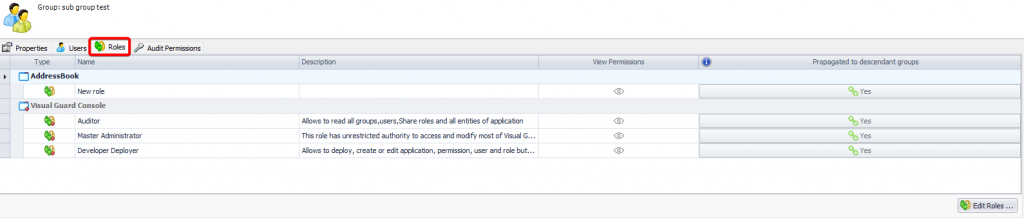
Step 4: The roles inherited from the parent group will be highlighted.
Below is the type of data available for Roles dashboard
🏷️ Type
The Type identifies the category or origin of the role. It helps administrators distinguish between different kinds of roles (e.g., system-defined or custom roles), ensuring better governance and control over how access is structured across the organization.
📌 Name
The Name represents the role assigned to the group and defines a specific set of permissions. In an RBAC model, roles act as a bridge between users and permissions, allowing organizations to assign access based on job functions rather than individual users.
📝 Description
The Description provides business context for the role, explaining its purpose and scope. This helps administrators ensure that roles are aligned with organizational responsibilities and reduces the risk of incorrect or excessive access being granted.
👁️ View Permissions
The View Permissions option allows administrators to review the exact permissions associated with a role. This is critical in RBAC to validate that the role grants appropriate access and complies with security policies and audit requirements.
🔄 Propagation to Descendant Groups
This option determines whether a role is automatically inherited by sub-groups in the hierarchy. In an RBAC framework, this ensures consistent and scalable access control, allowing organizations to enforce permissions across multiple levels without manual duplication.
The option can have one of the values are below:
•Yes: The value implies that the role has been propagated from the parent group to the child groups
•No: This value implies that the role cannot be propagated from the parent group to the child group
Please Note: In case a role has been assigned to the parent group and also to sub group then propagated to the descendant will be set to False.
How to Modify Roles
Step 1: Right click on the Group name in the left navigation panel, select the Edit Roles option from the menu.
OR
Select the Edit Roles option from the Action Menu.
OR
Click on Edit Roles provided at the bottom of the Right Navigation Panel
Step 2: Select the role that needs to be granted from list of roles (A).
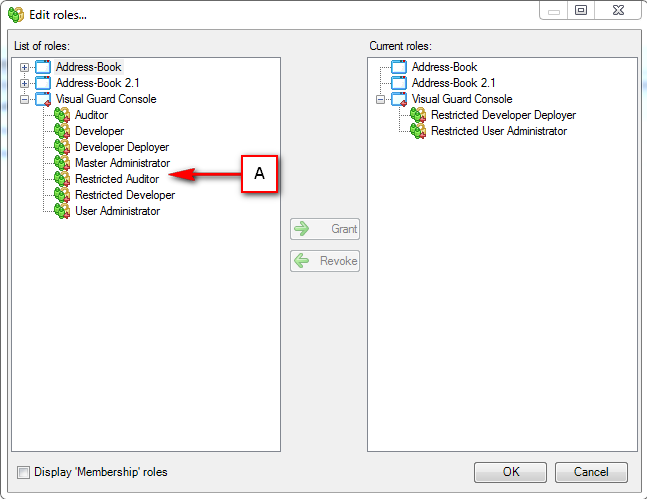
Step 3: User can grant one role at a time. Once a role (A) is selected ” -> Grant” (B) button will be enabled.
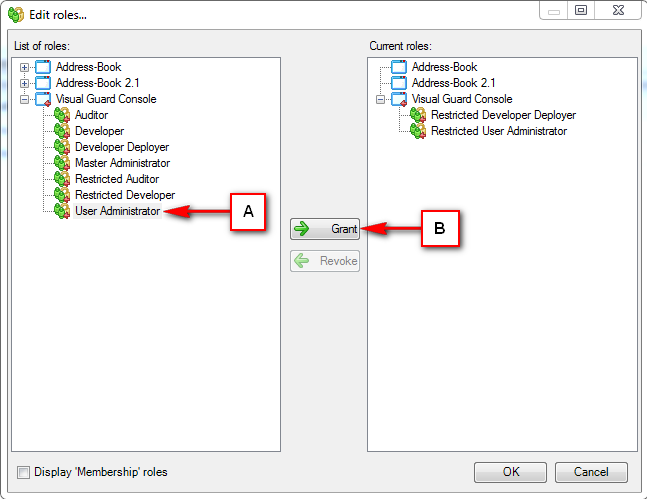
Setp 4: Click on “-> Grant” , the granted role will be displayed in Current role section(C).
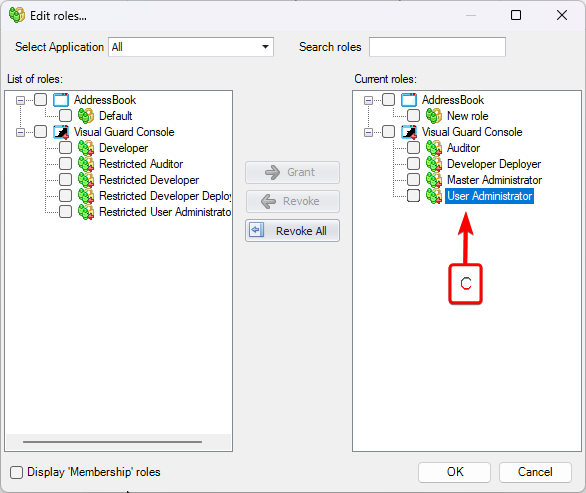
How to Revoke a Role
Step 1: User can remove the role by selecting the role from Current roles list. Click on <- Revoke to remove the role. The removed role will again be available in List of roles (D).
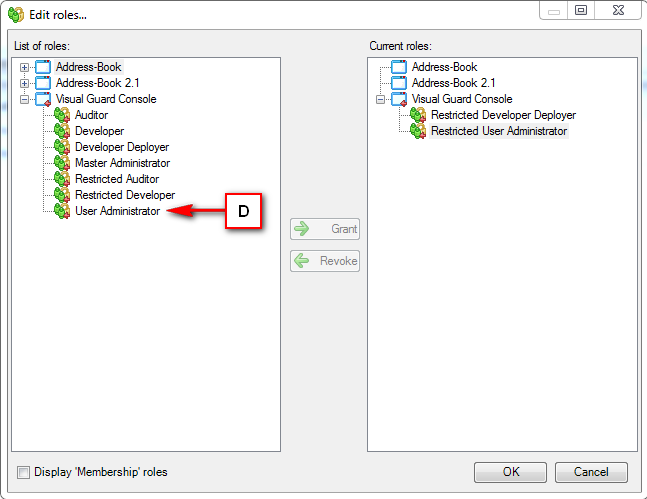
Step 2: Click on “OK” to save the roles or click on “Cancel” to discard the changes.