




Edit the Users Assigned to a Group
The Edit Users Assigned to a Group feature in Visual Guard allows administrators to manage the membership of a group by adding or removing users. This ensures that only the appropriate users are associated with a group based on their roles and responsibilities.
By updating group membership, administrators can easily control which users inherit the roles and permissions assigned to the group. This helps maintain accurate access control and simplifies user management, especially when users join, leave, or change roles within the organization.
Visual Guard allows you to create groups and manage users assigned to the group.
To view and edit the list of users that have been assigned the selected group follow the steps below:
Step 1: Select the Repository > Groups from the Left Navigation Panel –> Click on the User tabs as shown below.
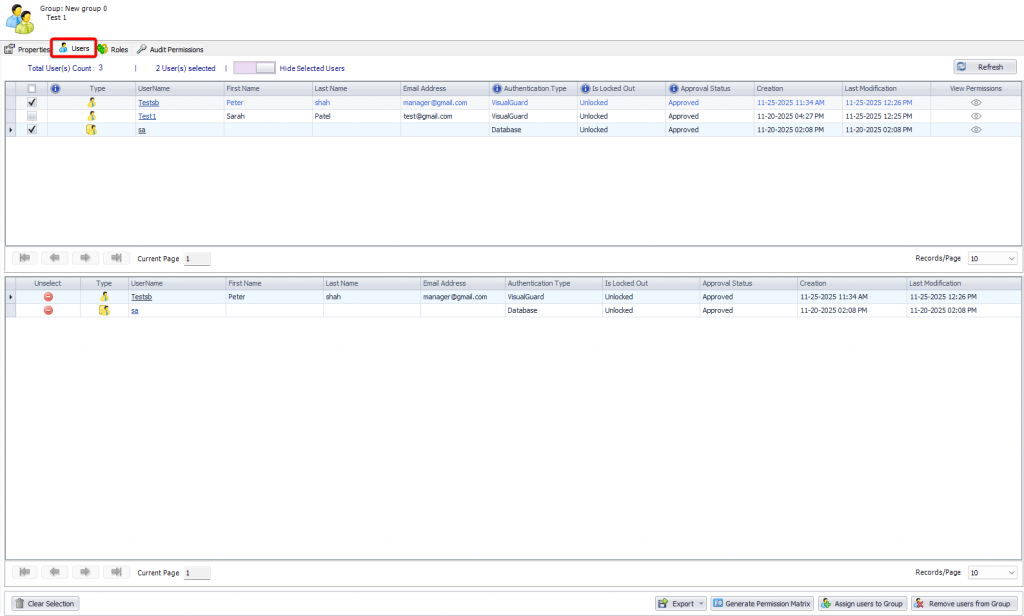
Using above screen, you can only view the list of the users assigned to the Group, you can click on the name of the user to Modify the User Details.
Features in Users Tab
🔢 Total Users Count
Shows the total number of users assigned to the group.
☑️ Selected Users Count
Indicates how many users are currently selected for performing actions.
🔍 Show Selected Users
Filters the list to display only the users that have been selected.
🔄 Refresh
Reloads the user list to reflect the latest updates or changes.
📋 User Selection (Checkboxes)
Allows selecting one or more users for bulk actions such as removal or permission review.
🏷️ Type
Indicates the type of user (e.g., Visual Guard user, database user, etc.).
👤 Username
Displays the unique username of the user.
🧑 First Name / Last Name
Shows the personal details of the user for easier identification.
📧 Email Address
Displays the user’s email associated with their account.
🔐 Authentication Type
Indicates how the user is authenticated (e.g., Visual Guard, Database, etc.).
🔓 Is Locked Out
Shows whether the user account is locked or unlocked.
✔️ Approval Status
Indicates whether the user account is approved or pending.
📅 Creation
Displays the date and time when the user account was created.
🕒 Last Modification
Shows the most recent update made to the user account.
👁️ View Permissions
Allows administrators to view the permissions assigned to the selected user.
➕ Assign Users to Group
Adds selected users to the group.
➖ Remove Users from Group
Removes selected users from the group.
📊 Generate Permission Matrix
Generates a detailed view of permissions for selected users.
📤 Export
Exports the user list and related details for reporting or documentation purposes.
🧹 Clear Selection
Clears all selected users in the list.
⏩ Pagination Controls
Allows navigation between pages when the user list is large.
🔢 Records per Page
Defines how many users are displayed per page.
ASSIGN USERS TO GROUP
Step 1: To assign more users to the selected Group, click on user or users –> click on Assign users to Group button.
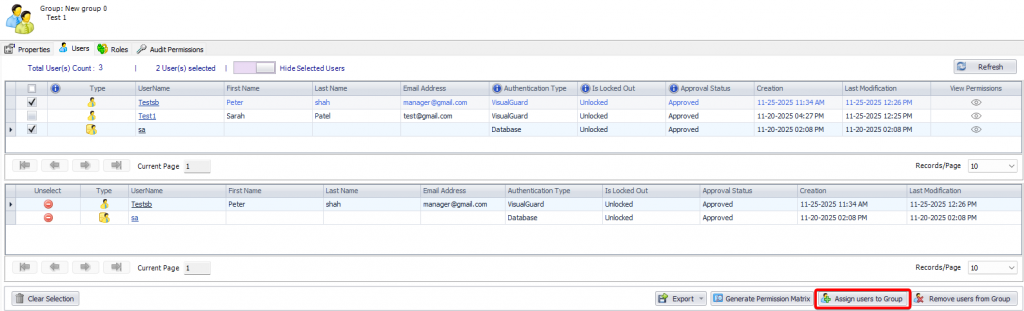
You will be provided with below screen:
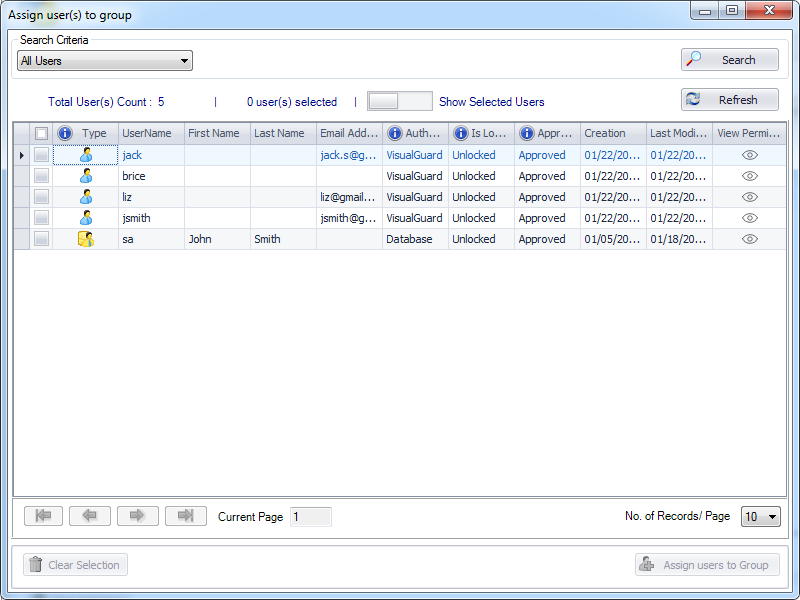
Step 2: Select User(s). “Assign users to group” option will be activated. Click on “Assign users to Group” to assign selected users to the Group.
REMOVE USERS FROM GROUP
Step 1: A Select User. Click here to know more about Selecting User
- As soon as the user is selected, “Remove users from group” will be activated.
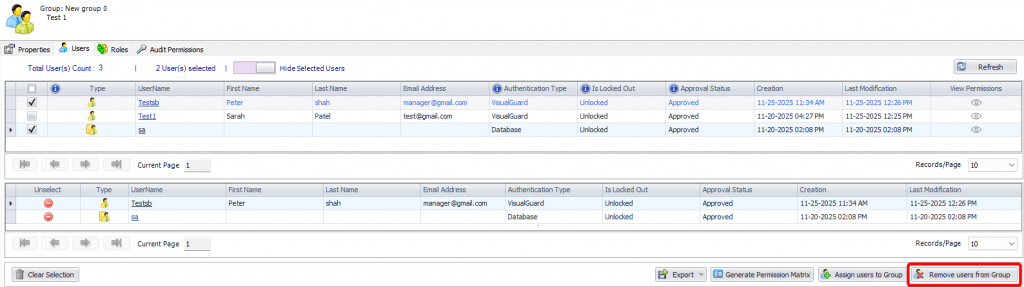
Note : The screen allows you to remove the users to whom this group has been assigned. As soon as the user is removed from the group the roles associated with the group will be revoked.
- As soon as you click on “Remove users from Group” , you will be asked for the confirmation.
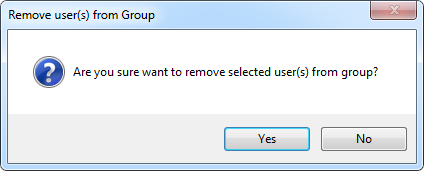
- Click on “yes” to remove the users or click on “No” to discard the action.
- The assignment between the Group and the selected users will be removed.